Pen Tablets: Faster Tool or Expensive Detour?
Tablets as input devices: where they genuinely save time, where they slow you down, real-world costs, setup pitfalls, and what the next few years likely bring.

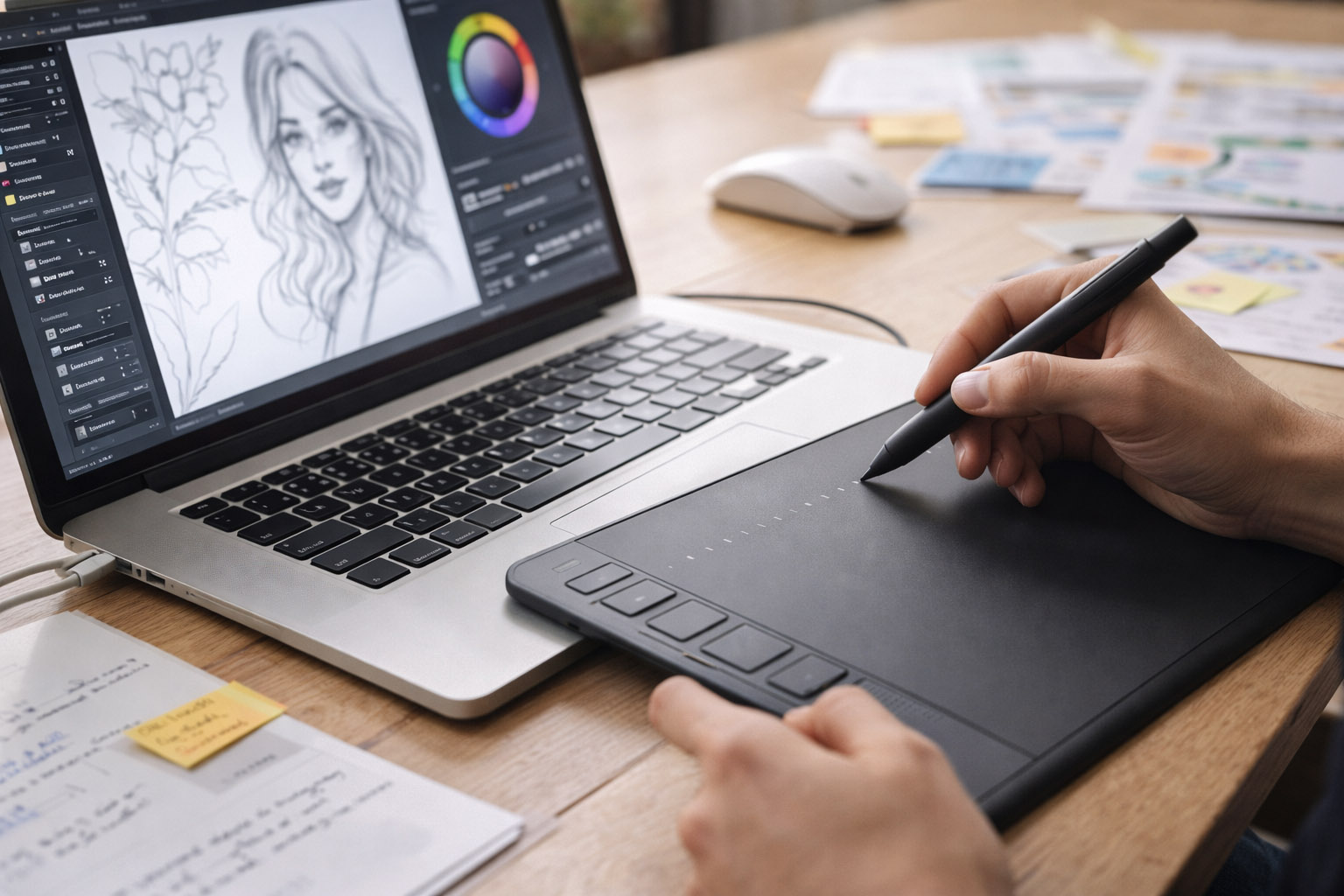
Tablets as input devices: where they genuinely save time, where they slow you down, real-world costs, setup pitfalls, and what the next few years likely bring.
“Should I buy a tablet with a pen?” is a deceptively simple question.
For some people, a pen becomes the default controller in a week. For others, it becomes an expensive peripheral that gets pulled out only for masking, then shoved back under the desk.
The truth is uncomfortable: a pen tablet can be faster than a mouse, but it can also be slower overall if your work is mostly selecting, typing, nudging, and navigating UI.
“A pen tablet isn’t a “better mouse”. It’s a different motor system: closer to drawing and handwriting than clicking and scrolling.”
This article breaks down where pen input actually wins, where it loses, what it costs (beyond the sticker price), and what’s likely coming next.
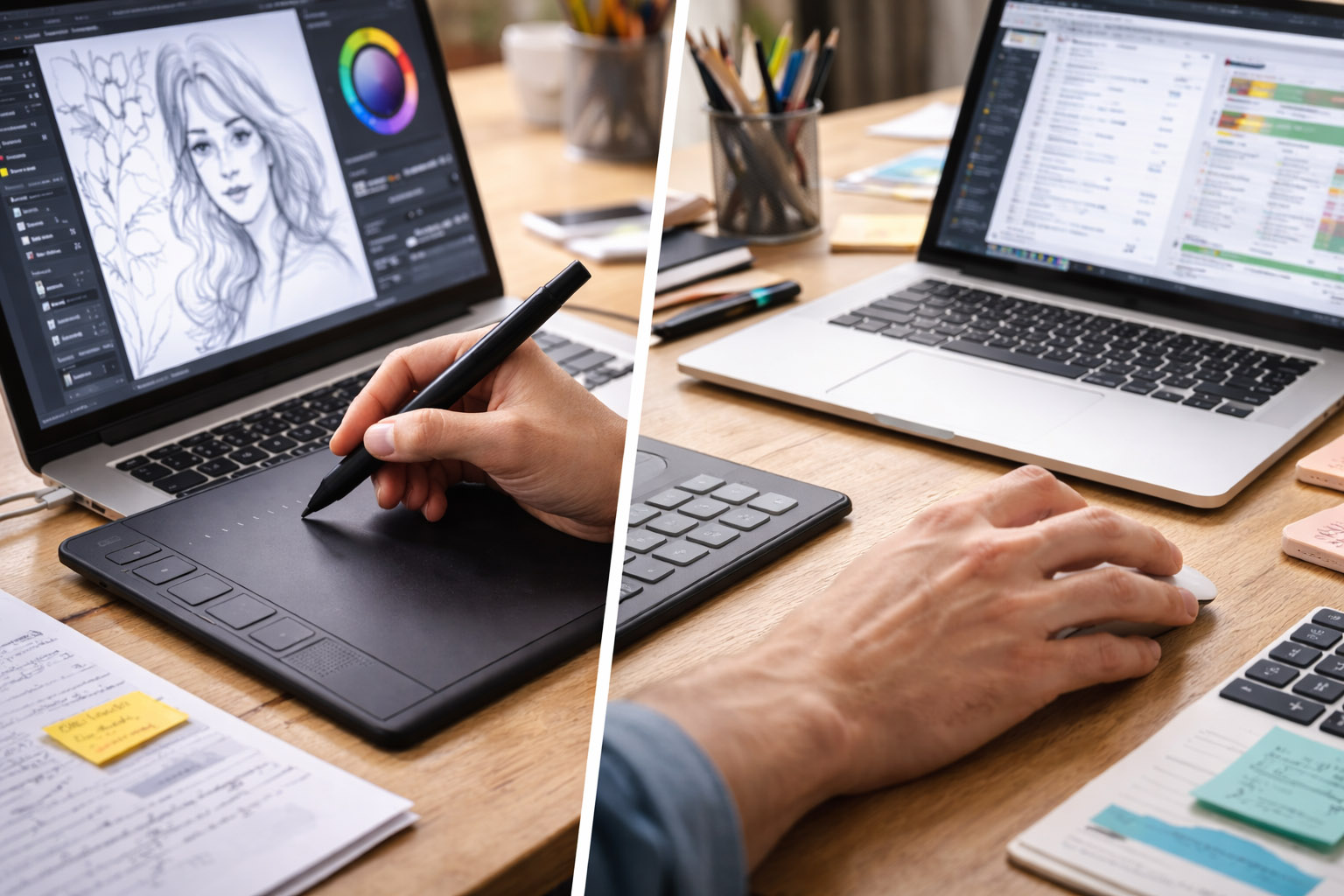
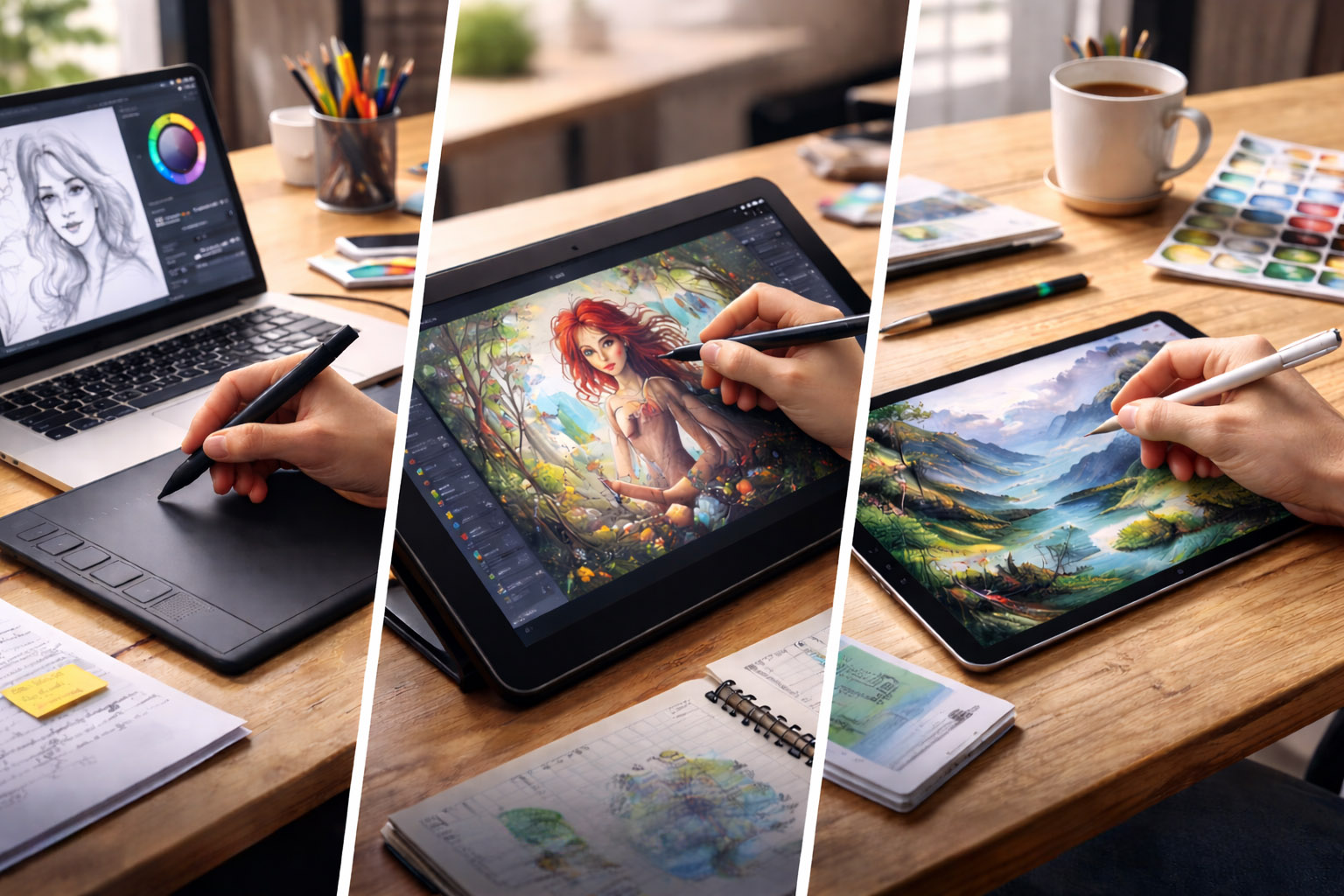
There are three common categories, and people mix them up constantly:
Pen tablet (no screen)
You draw on a surface, look at your monitor. Examples: Wacom Intuos, Huion Inspiroy, XP-Pen Deco.
Pen display (screen you draw on)
You draw directly on the display. Examples: Wacom Cintiq, Huion Kamvas, XP-Pen Artist.
Standalone tablet + stylus
You draw on a self-contained device (often an iPad), then sync/export. Examples: iPad + Apple Pencil, Android tablets with stylus support.
The tradeoff isn’t just “cheap vs expensive”. It’s also:
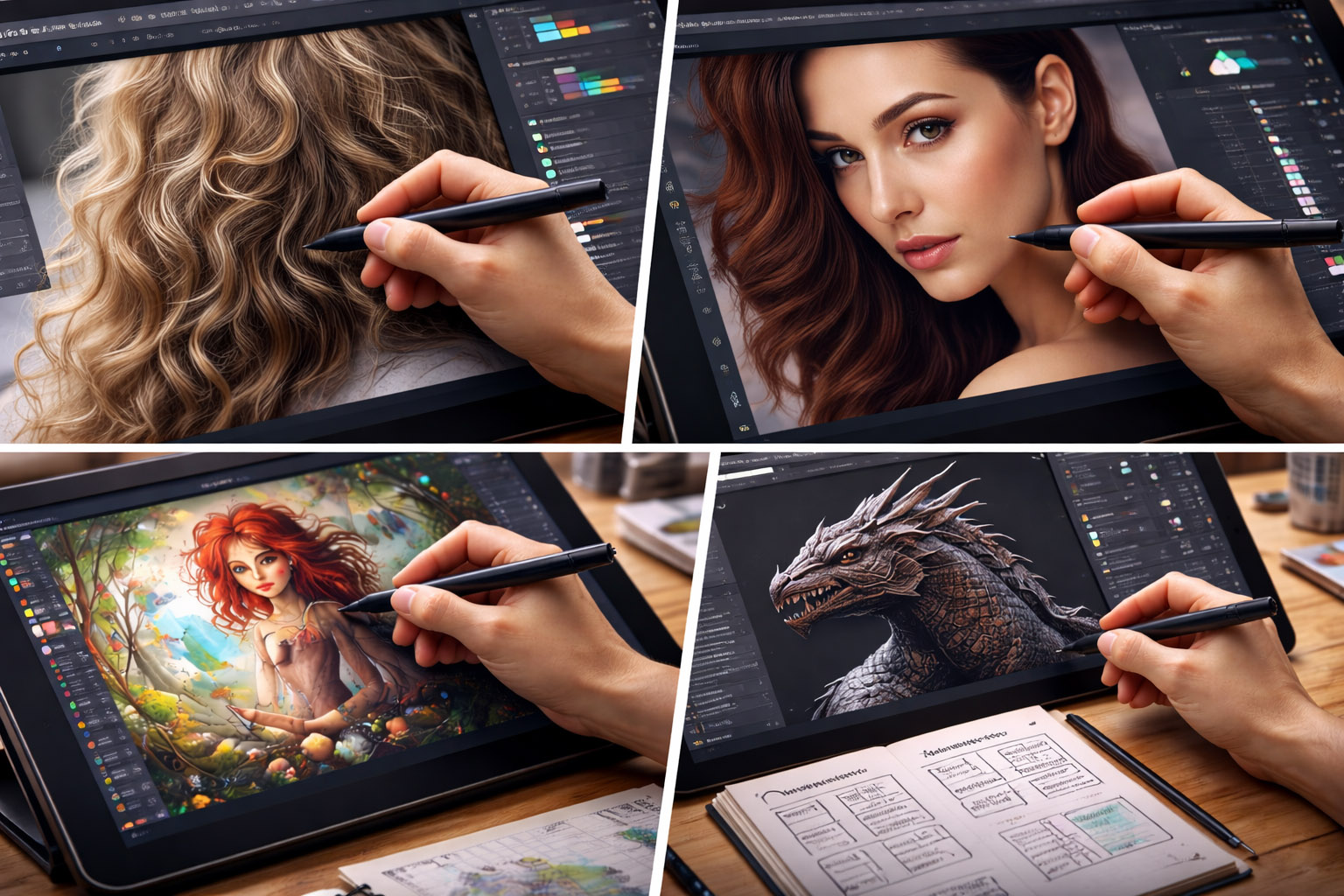
If your work involves continuous control (pressure, angle, path), a pen usually wins because it maps to how your hand already moves.
Common “pen wins” for designers and adjacent roles:
If you do even 30–60 minutes of brush-based work per day, a pen tablet tends to pay off faster than people expect — not because each stroke is magical, but because fatigue and correction loops drop.
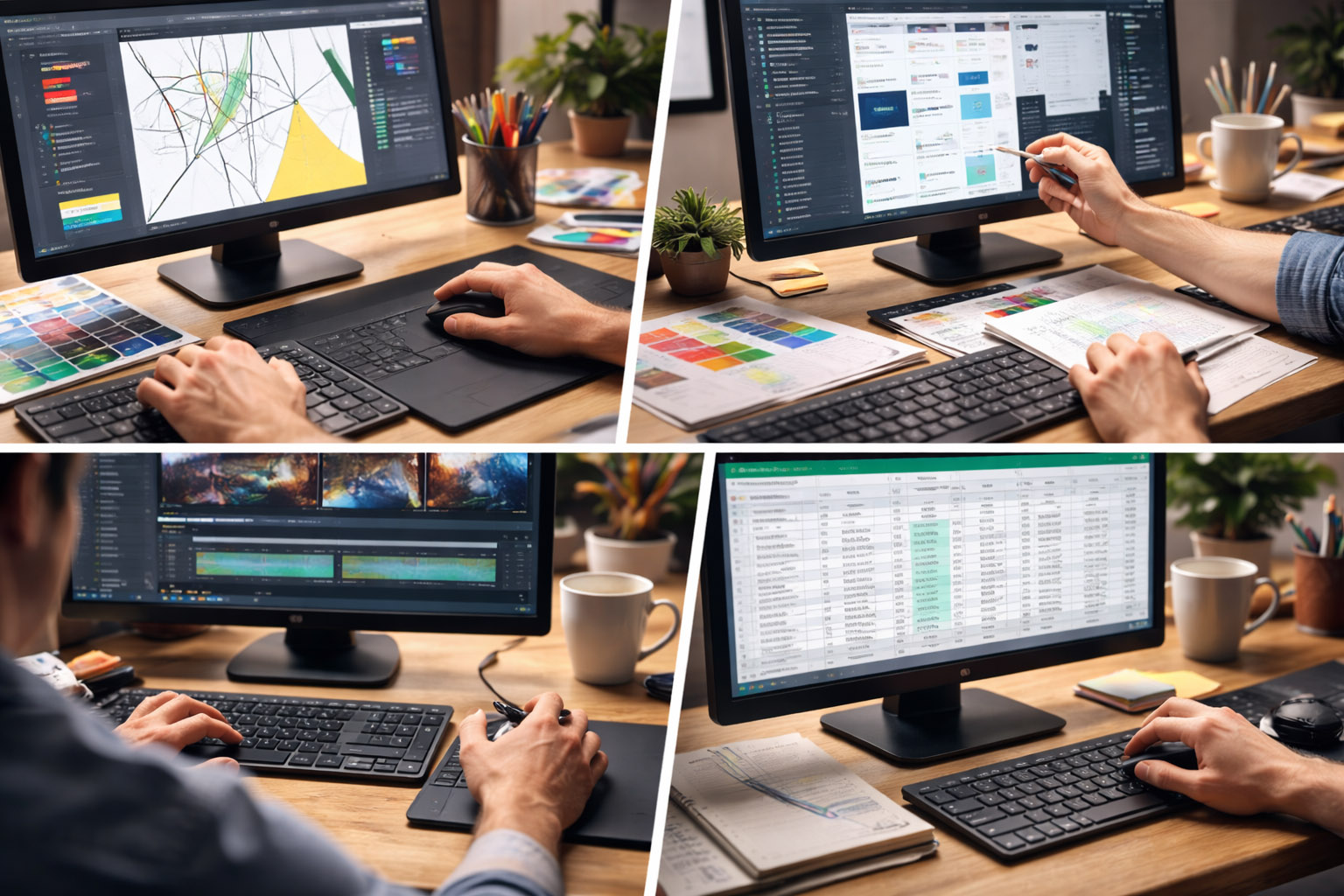
Pen input is not universally faster. It often loses in workflows dominated by discrete actions:
Typical “tablet loses” moments:
Why it feels slower:
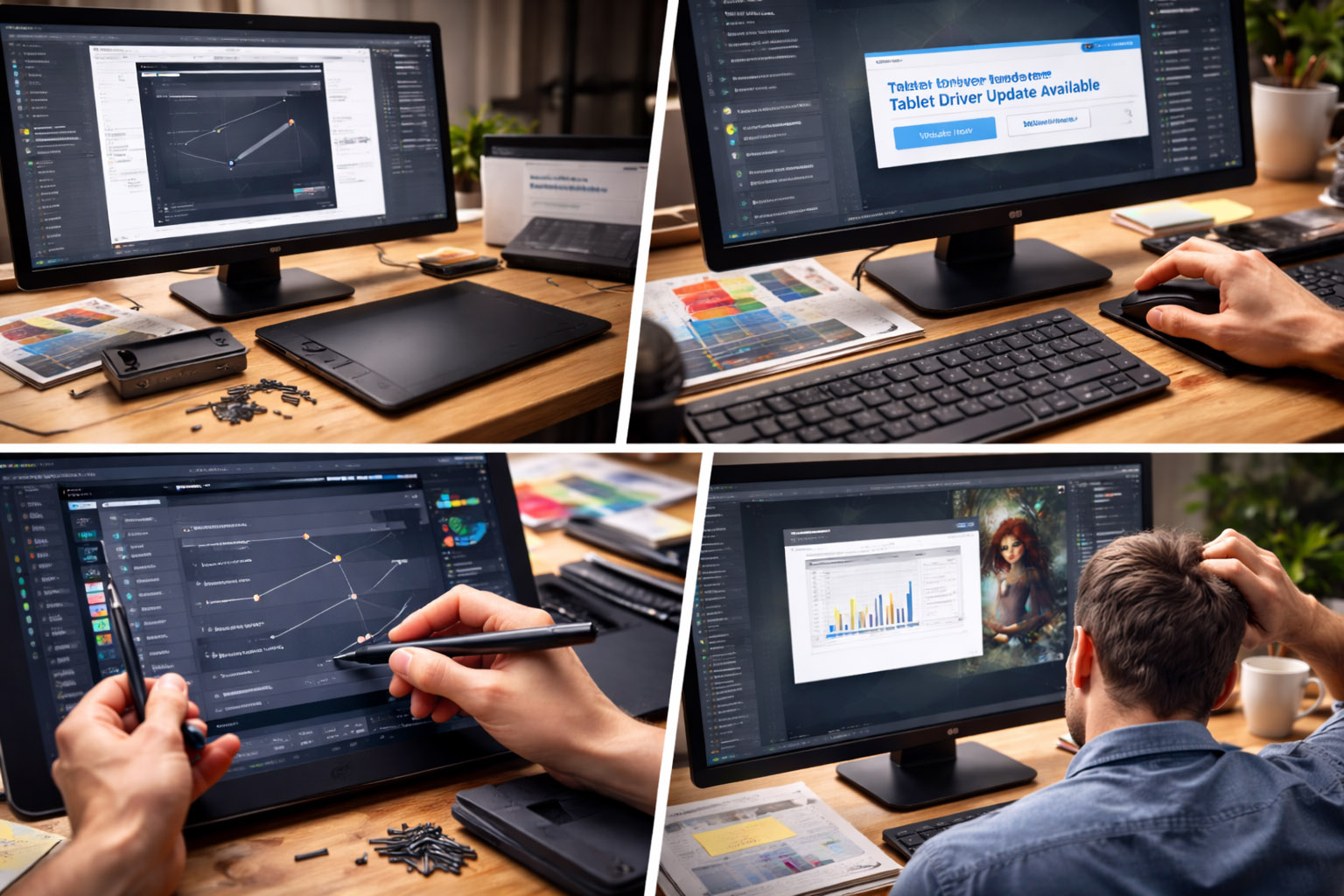
You don’t just “buy a tablet”. You buy a small system:
Common time sinks in the first month:
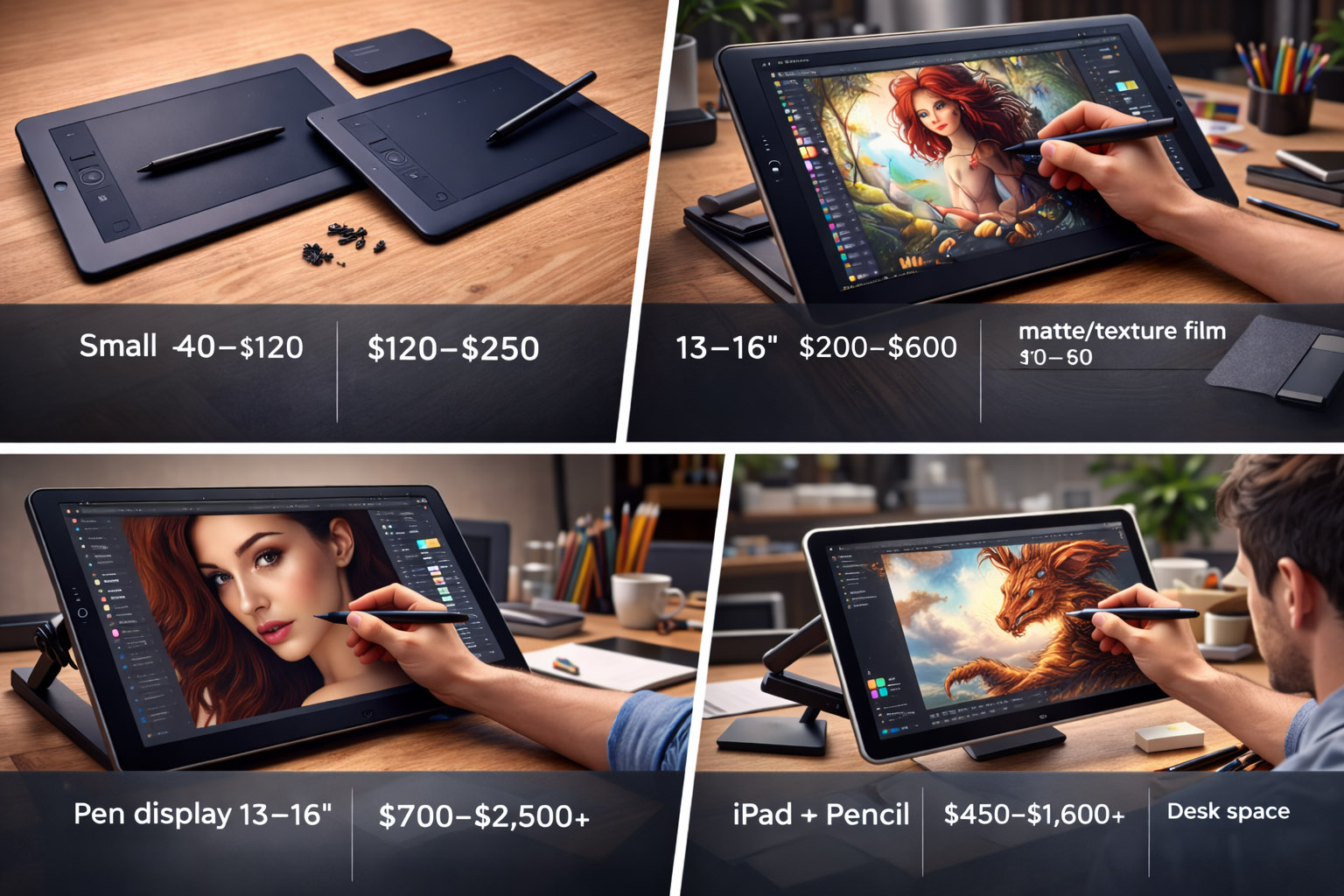
Prices vary by region and sales, but the practical ranges look like this:
| Category | Typical price | What you’re really paying for |
|---|---|---|
| Small pen tablet (no screen) | $40–$120 | entry pen feel, limited surface area |
| Medium pen tablet (no screen) | $120–$250 | comfort, better drivers, better mapping |
| Pen display 13–16" | $200–$600 | direct-on-screen drawing, more setup |
| Pen display 22–27" | $700–$2,500+ | ergonomics, color, build, pro stability |
| iPad + Pencil (standalone) | $450–$1,600+ | portability + app ecosystem |
Add-ons people forget:
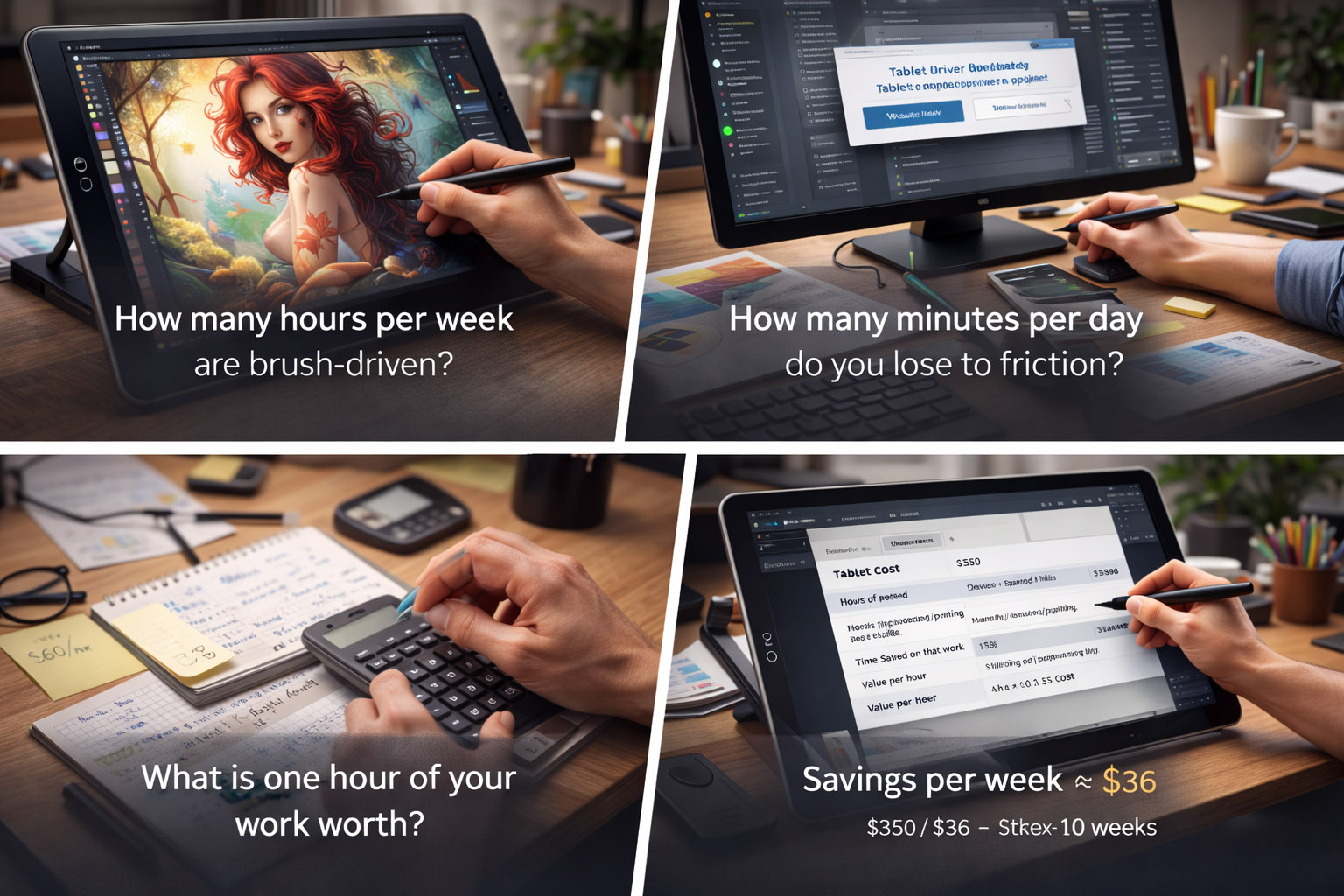
Instead of “is it good”, ask:
Here’s a simple break-even model:
| Input | Example | Notes |
|---|---|---|
| Tablet cost (all-in) | $350 | device + stand + nibs |
| Hours of pen-suited work/week | 4 h | masking/retouching/painting |
| Time saved on that work | 15% | realistic for many, not guaranteed |
| Value per hour | $60 | billing or opportunity cost |
Savings per week ≈ 4 h × 0.15 × $60 = $36
Break-even ≈ $350 / $36 ≈ 10 weeks
Flip side: if you do 30 minutes of pen-suited work per week, the break-even can drift into “never”.
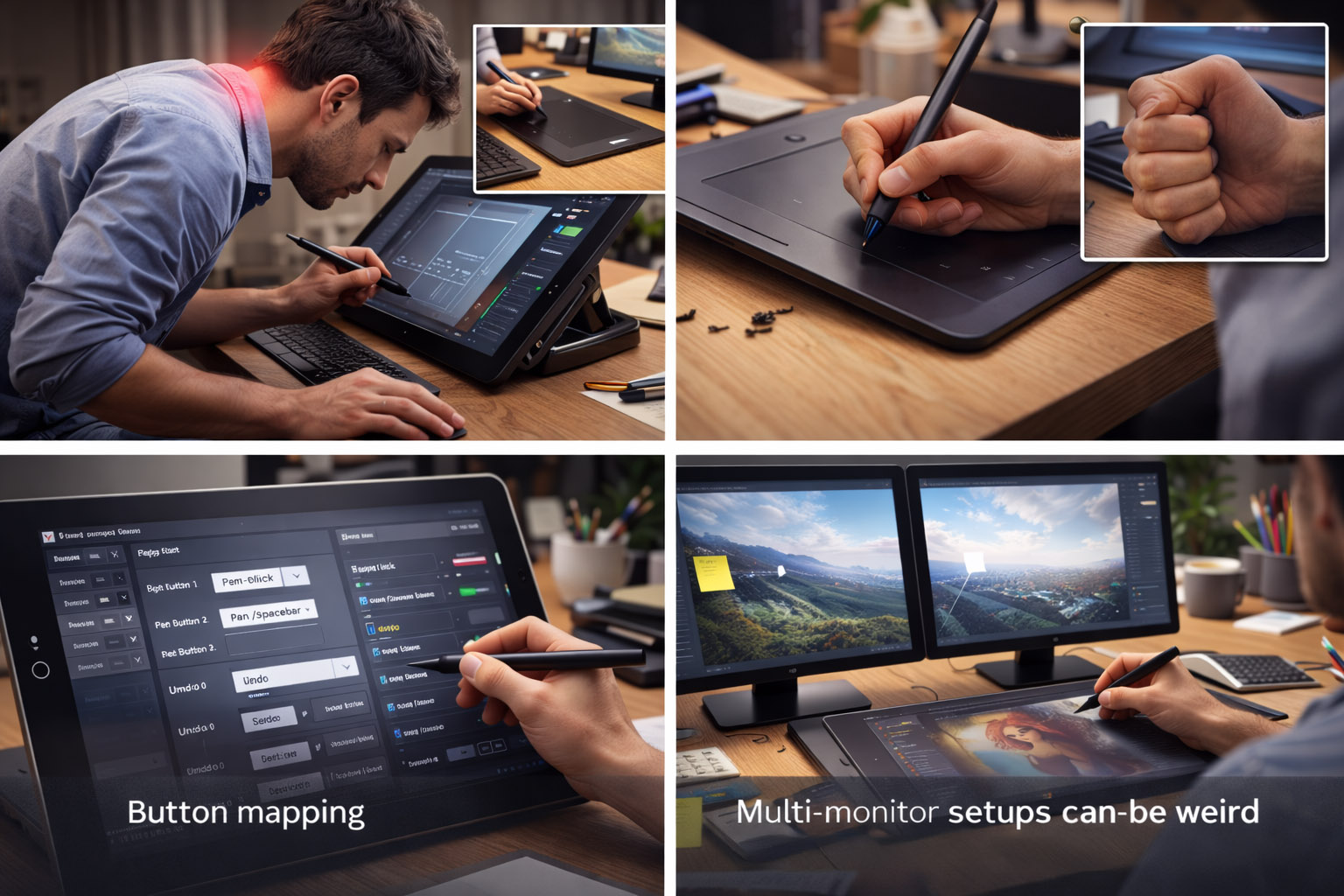
Pen displays can push you into a forward neck posture. Pen tablets can push wrist anchoring.
Mitigations:
The tablet itself doesn’t save time. Your shortcuts do.
A practical baseline mapping:
Absolute mapping across two monitors is where many people bounce.
Fixes that help:
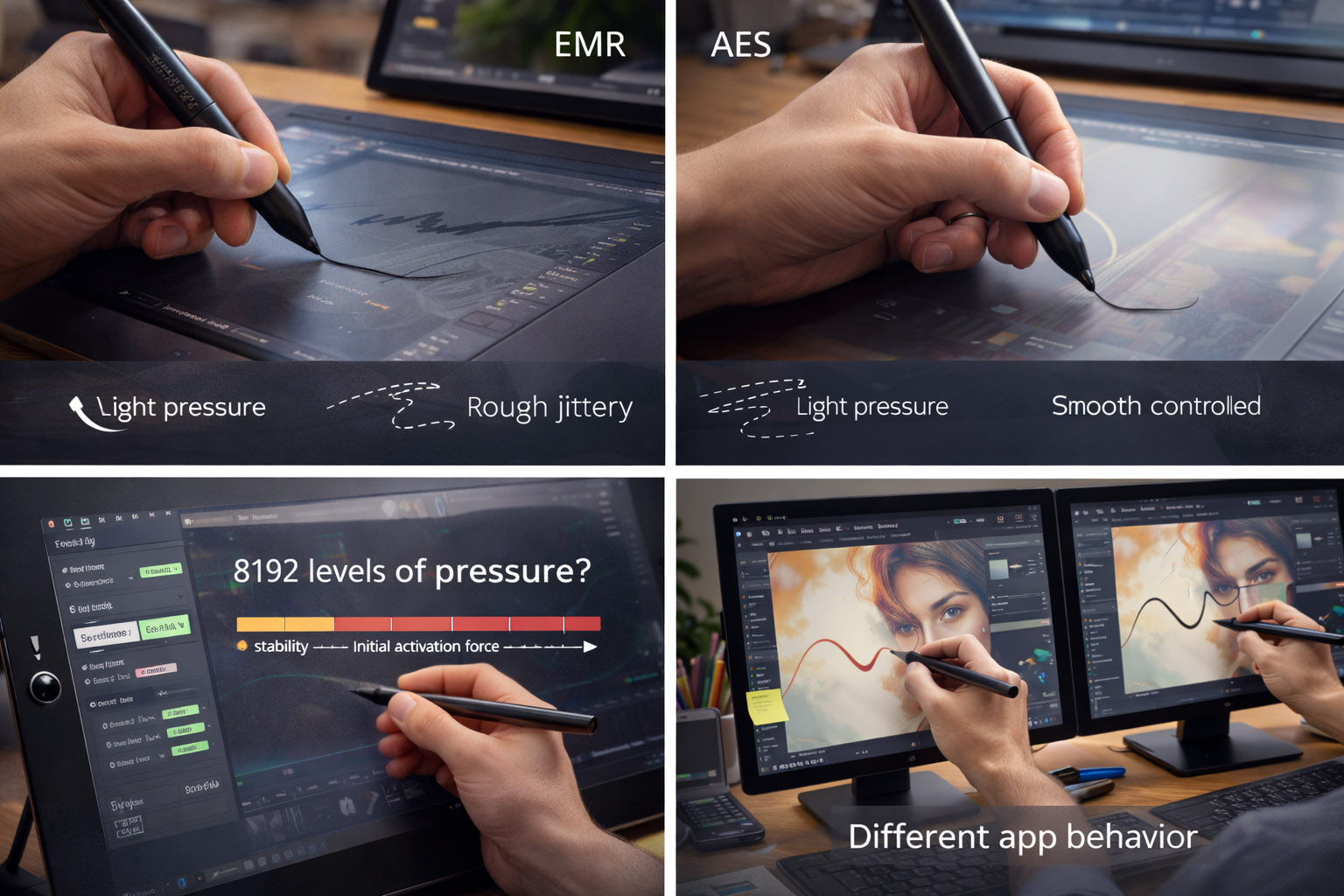
Stylus tech differences aren’t just marketing:
If you’re buying for brush work, the best metric is: can you reliably control light pressure without jitter?
Most people don’t use 8192 distinct steps. What matters more:
Some apps use one API, others another, and the same tablet can feel different across tools. That’s why “it’s amazing in app A, awful in app B” is common.
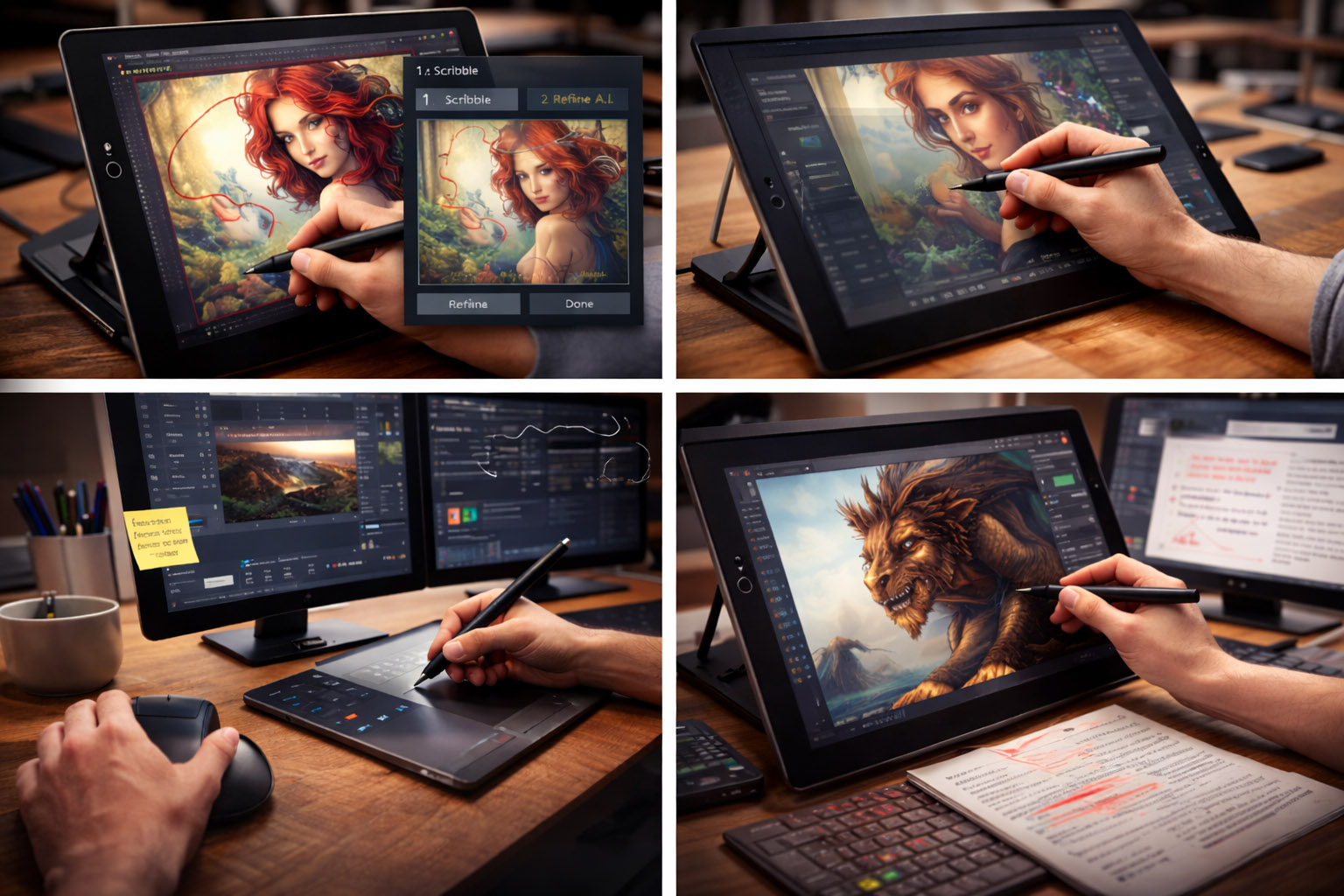
Pen + AI selection will compress the tedious middle
The pen becomes a fast “intent input” (scribble what you mean), while tools handle refinement.
Better latency and better palm rejection will matter more than more pressure levels
The next gains are comfort and reliability, not bigger spec numbers.
More hybrid workflows
Expect “mouse/trackpad for navigation + pen for edits” to become the default, especially as shortcut layers and on-screen command palettes improve.
More specialization by task
Pen tablets won’t replace the mouse universally. They’ll become the “power tool” you pull out when the job becomes brush-like, 3D-like, or markup-heavy.
A tablet with a pen is worth it when:
It’s not worth it when:
“If you’re unsure, start with a mid-size pen tablet without a screen. It’s usually the highest signal, lowest risk way to learn whether pen control fits your work.”

News, insights, case studies, and more from the rausr team — straight to your inbox.
Send us your brief, your wildest idea, or just a hello. We’ll season it with curiosity and serve back something fresh, cooked with care.