In brief
Mobile app design turns recurring tasks into clear journeys on a small, personal screen. The quality lives in the states between the polished screens.

Common tools
- Figma
- Browser tools
Skills in play
- Systems thinking
- Accessibility
- User testing
What it is
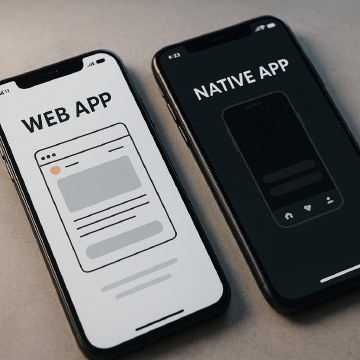
A mobile application is a designed set of tasks, content, and feedback in a personal device context. It may use device capabilities and platform patterns that a website does not, but that does not automatically make it the better choice. The design question is what people need to do repeatedly, how the app helps them resume, and how it behaves when attention, connection, or space is limited.
An app is more than a row of attractive screens. Its navigation, permissions, empty states, loading, errors, notifications, and accessible controls determine whether the experience remains trustworthy outside the ideal demo.
Model the jobs and the routes
Start with the core jobs people come to complete. Draw the shortest useful path for a first-time user and for a returning user. Map what the app must remember, where a person can change their mind, and how they recover from an interrupted task. Do not demand an account, permission, or tutorial before the value of the app is clear unless the task genuinely requires it.
Identify a small set of top-level destinations. Decide how people move laterally between them, forward into detail, and backward to a prior decision. Follow platform conventions where they solve a familiar problem; adapt them only when the user benefit is clearer than the cost of learning a new pattern. Design navigation labels in plain language, not internal product vocabulary.
Design the whole state space
Content and feedback
For each important screen, design the normal, empty, loading, error, and success states. Show what happens with long names, small devices, larger text settings, and incomplete data. A screen with no content should explain why and offer an appropriate next step; an error should help people recover rather than simply announce failure.
Use hierarchy to make the primary action obvious without making secondary actions invisible. Place controls where they can be reached and understood, but avoid simplistic rules about a universal “thumb zone”: device size, grip, assistive technology, and task context differ. Verify touch targets, focus order, labels, contrast, and screen-reader announcements on actual devices.
Motion, permissions, and interruptions
Use motion to explain a change of state or spatial relationship. It should not delay a common task, and a reduced-motion path should preserve meaning. Ask for camera, location, or notification access at a moment when the reason is evident. Explain the benefit and provide a useful alternative when permission is declined where feasible.
Plan offline and slow-network behaviour. Can a person still read saved content? Will an action be queued, retried, or clearly unavailable? Make the outcome unambiguous so users do not repeat a payment, submission, or message by accident.
Prototype on devices
Test the most important route with realistic content and constraints, not only a clickable happy path. Watch for back-navigation surprises, hidden controls, keyboard obstruction, and information that becomes unreadable at larger text sizes. Include people with different access needs and contexts where possible. Use the findings to revise the underlying flow before polishing transitions.
At handoff, provide components, spacing and type rules, interaction states, copy, accessibility notes, permission rationale, and examples of platform-specific behaviour. Document what happens when data is missing or the server does not respond. Engineers should not have to invent the product’s ethics and error language during implementation.
Common mistake
Treating every screen as a static composition. A mobile app is a changing conversation between a person and a system. Design the transitions, interruptions, and recovery paths with as much care as the first screen.
People and practice