In brief
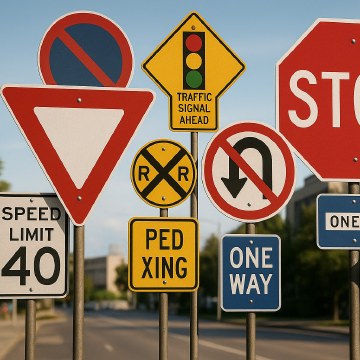
Iconography is the design of a related set of compact visual signs. Icons can identify actions, objects, states, categories, or destinations, but their meaning depends on convention and context.

Common tools
- Adobe Illustrator
- Figma
Skills in play
- Concept development
- Systems thinking
- Accessibility
What it is
An icon compresses a concept into a small visual form. It may identify an action, object, status, destination, or category. A system becomes coherent when icons share decisions about perspective, stroke, fill, corner treatment, proportion, detail, and visual weight.
An icon is not a miniature illustration by default. It has to work at its intended size and in its intended context, often beside text and other controls. The strongest drawing is the one people can recognise or learn without slowing down the task.
Meaning before style
Start by defining the concept and context. Some metaphors are widely learned; others are local, technical, or obsolete. A magnifying glass may suggest search in many interfaces; a custom symbol for a specialised action may need a label before it can become familiar.
List the actions and states before drawing. Check whether two concepts are too similar, whether one icon could be mistaken for an opposite action, and whether a label would be clearer. Similar actions need clearly different silhouettes, while related objects should share a visible family resemblance.
Build the visual grammar
A grid provides coordination but should not replace optical correction. Circles, diagonals, and dense shapes often need slight adjustments to appear equal in size and weight. Define the drawing area, stroke and fill rules, corner treatment, perspective, and level of detail. Decide how shapes overlap and where small gaps must remain open after reduction.
Test the set as a group. One icon can look balanced alone but feel heavier, wider, or more detailed beside the others. A small set of construction rules is more useful than forcing every symbol into an identical geometry.
Design states and contexts
Icons can appear in navigation, toolbars, maps, instructions, and empty states. Each context may need a different size or supporting label. Define default, active, disabled, and reversed versions only where the product needs them, and make state changes visible through more than colour alone.
For interactive controls, the clickable or touchable target should be comfortably larger than the visible glyph. Keep the icon centred optically inside that target. When a symbol performs an action, its accessible name should describe the action or destination, not merely the picture; for example, “Print this page” is more useful than “Printer icon.”
Test the set
Review icons together, in the real interface or environment, at final size. Test unfamiliar symbols without labels to learn what people infer; then add text where recognition or safety matters. Do not treat the unlabeled test as a challenge the user must pass. Its purpose is to reveal where the system needs clearer wording.
Check the smallest intended rendering, high-density screens, low-contrast environments, and print if relevant. If two icons differ only by a tiny internal detail, that distinction may disappear when the design is used.
Maintain the library
Provide names, intended meanings, usage examples, sizes, and editable source files. A shared library prevents near-duplicate symbols from entering the system through separate projects. When a new icon is requested, first ask whether an existing symbol or a text label already solves the problem.
Test an icon in its interface
Place a candidate icon beside its label, neighbouring controls, and real content before approving it. Then try the design without the label. If the action becomes ambiguous, retain visible text or another cue rather than trying to make the pictogram more intricate. A tooltip can help explain a control but does not replace a clear name or a usable touch target.
For a set, test the hardest pair of meanings together: save versus download, share versus send, or favourite versus bookmark. Include empty, active, disabled, and error states in the library. Supply a naming convention and an owner for additions so that new icons inherit the same geometry and semantics.
Practical checks
- Compare visual weight rather than only geometric dimensions.
- Test filled, outlined, active, disabled, and reversed states where required.
- Keep touch targets larger than the visible glyph in interactive contexts.
- Supply meaningful action or destination names for interactive icons.
- Avoid using tiny detail as the only distinction between two actions.
Common mistake
Assuming that a clean drawing is automatically universal. Icons are learned signs. Even familiar symbols can change meaning across cultures, industries, generations, and products, so context and testing remain essential.
People and practice